How to Protect your WordPress blog from hotlinking using .htaccess

Hotlinking is the use of images from one site into a web page belonging to other sites. Many bloggers are hotlinked, and have their bandwidth used on other websites. This code is very useful to protect your WordPress blog from hotlinking. So, this script will replace the original image with the image that we want, a warning image to appear on their blog page, where their put our image link.

This script is placed in the file. Htaccess, but to access these file you must have access to the admin panel in the hosting. This file will be exactly one level with the folder wp-admin, wp-includes, wp-content. If you do not find this file, first make sure you have show the hidden files, if the file is not exists, you can create this file directly on your hosting by click create a new file with the name ". Htaccess" without the quotes. Well here are the default script file. Htaccess, please copy and paste the file into .Htaccess file that you just created.

# BEGIN WordPress

RewriteEngine On
RewriteBase /wordpress/
RewriteRule ^index\.php$ - [L]
RewriteCond %{REQUEST_FILENAME} !-f
RewriteCond %{REQUEST_FILENAME} !-d
RewriteRule . /wordpress/index.php [L]


# END WordPress

Now you have the file. Htaccess. Then the anti-hotlinking script, please copy and paste the following code into the file. Htaccess.

RewriteEngine On
#Replace ?mysite\.com/ with your blog url
RewriteCond %{HTTP_REFERER} !^http://(.+\.)?mysite\.com/ [NC]
RewriteCond %{HTTP_REFERER} !^$
#Replace /images/nohotlink.jpg with your "don't hotlink" image url
RewriteRule .*\.(jpe?g|gif|bmp|png)$ /images/nohotlink.jpg [L]

So now your .Htaccess file will be look like this.


Do not forget to replace ?mysite\.com/ with your domain name, then /images/nohotlink.jpg with your "no hotlink" image. URL address of the image is /images/xxx.jpg, so make sure you have folder "images" in there. You can make it or you can change it to another address, such /wp-content/uploads/2013/nohotlink.jpg.

That's it the tutorial of how to protect your WordPress blog from hotlinking using .htaccess, now you can try to put your image link on another blog and see what happened. Happy blogging.

How to Fix Syntax Error in WordPress Theme

It is common in wordpress novice users, while using a new theme, especially free themes. Some people may immediately claim that the theme is broken and can not be used, but it is actually very easy to fix syntax error in wordpress, without having to switch to another theme. This error can also be caused by a plugin that you install.

To fix syntax error in wordpress theme, first you must have access to the wp-content, where the theme files saved.

To facilitate you finding out the lines of a syntax error, I suggest that you use the numbered text editor, such as notepad + +. The number I mean here are the numbers that are on the left each line syntax.

Associated with the numbers above, now I want you to find out what line and where exactly the error comes. Here is an example of the error messages that appear due to multiple functions inside functions.php file and how to solve it.


Look at the error message screenshot above. In this case the error is caused because mr_meta() previously declared on line 19 in functions.php and redeclared on line 24 in functions.php.

So to fix the error as above, you can edit the functions.php file in your theme folder, then go to line 19 or 24 to remove one of these functions.

See, it's very easy, so I hope when the error message appears you do not immediately panic and then change your theme. However, if the error comes from the wordpress plugins or other files inside the wordpress folder, you should consult to an expert on this, or you can post threat in the wordpress forum.

How to remove wordpress version meta completely

By default wordpress put this meta tag in your theme header to tracking the wordpress users. That is how we know that WordPress is the World’s largest Blogging platform. However, some people with the ability to destroy other people's blogs, otherwise known as hacker, using the information to carry out their evil acts. By knowing which version you are using and know the weaknesses of the versions, and then the criminals smile.

Some people remove the tags from the header for security reasons, as I've described above. But you do not need to bother removing this tag if you are one of the bloggers who actively update the wordpress version. WordPress will make improvements over the previous version every time updated. But if you are a big fan of the old version of wordpress, and do not want to update your wordpress version, then you can remove it from your header theme by following this tutorial.

There are several ways to remove wordpress meta version from your header, one is by removing the meta tag from the header, or by using a script in the file function. There are three methods to be able to remove the wordpress version from your header.

Method 1: Open your header.php file, then find and delete the following code.

<meta name="generator" content="WordPress <?php bloginfo('version'); ?>" />

Method 2: Open your functions.php and add the following code.

remove_action('wp_head', 'wp_generator');

But of the two methods above, it does not completely eliminate wordpress version of your blog. Wordpress version you will still be known by others, because wordpress version still printed in your rss. If you are already using one of the methods above, please check your rss blog, it will look like the screenshot below.


Method 3: In order for you to completely remove your WordPress version number from both your head file and RSS feeds, you will need to add the following function to your functions.php file.

function my_remove_version() {
return '';
}
add_filter('the_generator', 'my_remove_version');

Now your wordpress version completely removed from your blog, and i think nobody will found out. If there are any questions please comment below, I will be happy to answer your questions.

How to insert ads after first paragraph automatically

You must have seen a blog with adsense in the middle articles of each post, if you think to put adsense code every time you make a post, then you are wrong, because there are other easier ways to insert ads after first paragraph automatically.

There is an easier way to insert ads after first paragraph automatically in wordpress  using a script that is put in the functions.php file. This method is much easier and more effective, because you do not need to touch the script adsense again during making articles.


The workings of this method is the ads code will inserted by the script into the post after a predetermined mark. In this tutorial, ads code will be inserted into each posts after first closing p (html, paragraph), then the ads will appear in every post right after the first paragraph.

Well, here is the script that must be inserted into your functions.php file to insert ads after first paragraph automatically in wordpress.

//Insert ads after first paragraph of single post content.
add_filter( 'the_content', 'prefix_insert_post_ads' );
     function prefix_insert_post_ads( $content ) {
 
 $ad_code = '<div>Ads code goes here</div>';

 if ( is_single() && ! is_admin() ) {
  return prefix_insert_after_paragraph( $ad_code, 1, $content );
 }
 
 return $content;
}

// Parent Function that makes the magic happen
function prefix_insert_after_paragraph( $insertion, $paragraph_id, $content ) {
 $closing_p = '</p>';
 $paragraphs = explode( $closing_p, $content );
 foreach ($paragraphs as $index => $paragraph) {

  if ( trim( $paragraph ) ) {
   $paragraphs[$index] .= $closing_p;
  }

  if ( $paragraph_id == $index + 1 ) {
   $paragraphs[$index] .= $insertion;
  }
 }
 
 return implode( '', $paragraphs );
}

Once you put the above code into functions, things you should do next is replace the red part with your ads code. You can also change the number of paragraphs by changing the orange part. Suppose I change the number of paragraph to 2, then the ad will appear after the second paragraph.

That's it, now you can insert ads after first paragraph automatically in wordpress with ease. If there are any questions please comment below, I will be happy to answer your questions.

How to create a simple wordpress plugin

Plugin is one of the mainstay features of wordpress. Wordpress plugin will allow the users to use an function or script that written by a developer with easier, because the script can be packaged in an application that can be used by bloggers just by install it, with a single click.

For some bloggers and newbie developers might want to know how to create a plugin for wordpress, and here I will show you how to create a simple wordpress plugin.

For the first step, i want you to make a folder in the plugins folder. wp-content/plugins/. In this tutorial I named my plugin folder my-first-plugin.

Creating Main Plugin's File

Inside this file, it's containing information of the plugin. Like plugin name, author, authors address, address plugin, license, etc. And now, I want you to create a php file that contains the information.

Here I named it my-first-plugin.php. This file will be the main file of our plugin. Fill the file with the plugin's information below.

<?php

/*
   Plugin Name: My First Plugin
   Plugin URI: http://my-first-plugin.com
   Description: this is my first plugin
   Version: 1.0
   Author: Rahman Kurnia
   Author URI: http://classofbeginner.blogspot.com
   License: GPL2
*/

Now we have a new plugin in the installed plugins list, in the wordpress admin Dashboard >> Plugins. Let's activate it to check if there is a miracle to our plugin, lol.


See, make a wordpress plugin it's very easy, but your plugin is not done yet. We need an option page, and it's should show something to the templates. Just follow the next steps.

Creating Plugin Options Page

The first thing you should do before you write the code for your plugin is to define the address and path of your plugin, to simplify writing the code and functionality of the plugins.

This will really help when we write a lot of code and have lots of directories in the plugin folder. We can also define the directory addresses each. Suppose that the path to the directory includes.

define( 'MFP_PATH', plugin_dir_path(__FILE__) );
define( 'MFP_DIR', plugin_dir_url(__FILE__) );

MFP is my first plugin. And now, every time you want to call your plugin, you can write the address like this

<?php echo MFP_DIR . ('process.php'); ?>

If you have another directory in your plugin folder, example includes, img, js, or css folders then you can write it like this

<?php echo MFP_DIR . ('includes/process.php'); ?>

Next. Let's create the plugin option page. Enter the code below to make an admin page that have some options to your plugin.

function mfp_admin_page(){
 global $mfp_settings;
 $mfp_settings = add_menu_page(__('Admin MFP', 'mfp'),__('MFPanel','mfp'),'manage_options','mfp-admin-panel','mfp_render_admin');
}
add_action('admin_menu','mfp_admin_page');

$mfp_settings is the hook name of the function. This will be used to make the load hook scripts for this plugin.

Parameter 1 (Admin MFP) - is the title used in your HTML page.
Parameter 2 (MFPanel) - is the title used for the menu item on the left menu.
Parameter 3 (manage_options) - is the capability needed to add the page. You can keep it as administrator in most of the cases..
Parameter 4 (mfp-admin-panel) - is a unique key used for the menu item.
Parameter 5 (mfp_render_admin) - is the function name used to implement the HTML form.

Now let's refresh the dashboard to see if the new menu appears at the very bottom. It should appear as MFPanel menu, to change the name of the menu, you can change the parameter 2.


Render the Plugin Admin Options Page


To create a html page on the plugin options page, you have to use parameter 5 as a new function. Let's see what's on the parameter 5, ah, it's mfp_render_admin. Now I want you to write code below to create html of your plugin options page.

function mfp_render_admin(){
     ?>

<div class="wrap">
<h2><?php _e('MFP Admin Panel','mfp'); ?></h2>

<p>Hello world! This is my first plugin</p>

</div>

     <?php
}

You can create a form and input on the page by adding some html code into it.


Load the scripts for admin page

To load scripts like css and js for the admin page, you can use the code below as an example.

function mfp_load_scripts($hook){
 global $mfp_settings;
 
 if( $hook != $mfp_settings )
 return;
 
 wp_enqueue_script('mfp-ajax', plugin_dir_url(__FILE__) . 'js/mfp-ajax.js'); 
 
 wp_register_style( 'main-style', plugins_url('css/style.css', __FILE__) );
 wp_enqueue_style( 'main-style' );
 
}
add_action('admin_enqueue_scripts','mfp_load_scripts');

Done, that's how to create simple wordpress plugin, if there are any questions please comment below.

How to Downgrade Wordpress Version

Some of the new wordpress version is considered less suitable, or have error or conflict with some plugins you are using, and want to downgrade the wordpress version. To downgrade version of wordpress is not difficult and does not harm your blog at all, if you follow the right way. Here's how to downgrade wordpress version from and to any version.

1. You must have access to a hosting or cpanel and file manager, you should be able to reach your wordpress installation folder, usually installed in public html. Wordpress file consists of multiple folders and multiple files php. There are wp-admin, wp-content, and wp-includes folders and a lot of php, here I give you a screenshot of the wordpress files.


2. You can download wordpress with version you want here. Just download with ZIP format.

3. Extract the archive, and you will see the same files like my screenshot above.

4. Delete wp-content folder and wp-config.php if you found this file exist in your download.

5. Next, extract all of the files including two folders and named it with something unique name, because maybe you already have the same zip file in your host. Eg. wordpressdowngrade.zip

6. Upload it to your host to the wordpress installation folder and extract it to replace your existing files.

7. Next go to wordpress admin interface or wordpress dashboard. You will see an alert that the database needs updating, just click on it.

8. Now, you're back to the older versions.

How to move Plugin SEO Meta Data to top

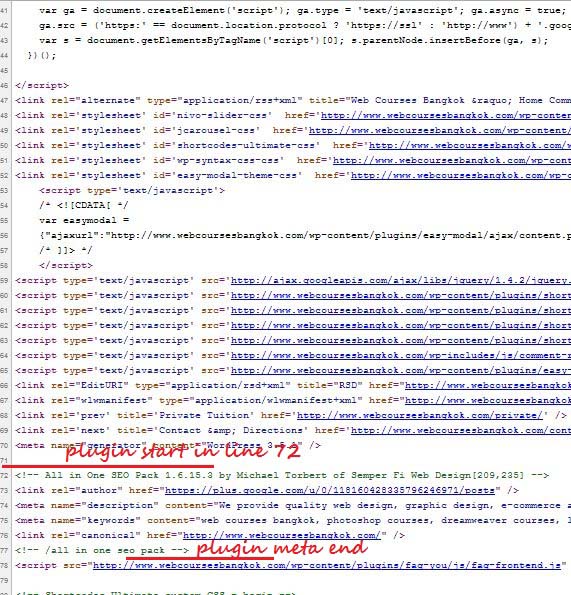
Generaly SEO Meta Data of a plugin seo is under the meta link, external stylesheets and even under pile of lines of the external scripts. This causes seo meta data of the plugin should wait a turn most behind to read by bots. As a result there are few external script links that get indexed, because meta data read after the external script lines.

Here is a screenshots of SEO Meta Data that is generated by the wordpress plugin:

This is how default SEO Meta Data looks like in source page :


And this is how it should be :


The screenshot above does have different SEO plugin, which one is AIOSP by Michael Torbert and the other is the Yoast SEO, but it doesn't matter, because I will show you how to move plugin SEO Meta Data to top both.

But before moving forward, the first thing you need to know is we are going to edit the plugin, and you have to edit the plugin every time the plugin get updated. But we are not going to make many changes because it is very simple, and you can do it once every week. :D

Well here are the steps to move SEO Meta Tags to top:

Creating new wp head function


Basically all the SEO plugin will shows its metadata in wp_head function. This function is located in header of your template. If you don't have this code in your template header, then few plugins won't work in your template.

This function is a default function of wordpress, and it is supposed to exist in the header of your template. But if you do not have it or you accidentally remove it, just add the code bellow to your header.php file right before closing head tag "</head>".

<?php wp_head(); ?>

Fire the wp_head action


Now I want to display the SEO meta data before the wp_head function called, then we have to create a new function that we will put it over the wp_head line.

To make a new function that similar like wp_head function, so we can use it to manage meta data position, add the following code into your functions.php file

function mr_meta() {
   do_action('mr_meta');
}

Now we have a new function that is called mr_meta, so you should use to call the function. You can change the function name if you want. After that, i want you to put the mr_meta function into your header template or the header.php file, right before wp_head line. It should be like this:

<?php mr_meta(); ?>
<?php wp_head(); ?>

Edit plugin


For AIOSP Plugin by Michael Torbert:


  1. open the all_in_one_seo_pack.php the file is located in ../wp-content/plugins/all-in-one-seo-pack/
  2. find wp_head by pressing ctrl+f and then type wp_head in it ("there are four wp_head")
  3. replace wp_head with mr_meta ("replace them all") and save
  4. open the aioseop.class.php file
  5. find and replace wp_head lines with mr_meta ("there are four wp_head, you have to replace them all too")

For Wordpress SEO Plugin by YOAST:


  1. open class-frontend.php file is located in ../../plugins/wordpress-seo/fronted/
  2. find this line
    add_action( 'wp_head', array( $this, 'head' ), 1, 1 );
  3. replace the red part with mr_meta
  4. it should be like this
    add_action( 'mr_meta', array( $this, 'head' ), 1, 1 );
  5. save file

Now your plugin meta will shown in the mr_meta function not wp_head. But you have to remember that it's will be back to default everytime you update your plugin. You can change the position of it also, its good too under the title tag. Refresh your page source and check if your SEO meta data has moved.

Wordpress 3.5 image upload error


This problem occurs in many users wordpress version 3.5.1, the problem getting more difficult because in this version, the function of the non-ajax image upload has been removed since 3.5. This led to the blogger can not upload pictures to post them at all.

But strangely, this error message appears after the progress bar is complete, this is weird. It turns out I was right, after I fix this error, I get some of the same pictures, because I have tried several times, for the same image. Thus, the possibility of this error occurs only when displaying images that have been uploaded.

Here's how to fix the image wordpress upload error occurred on wordpress version 3.5 and 3.5.1.

Re-install Wordpress


What I mean by reinstall wordpress is not to remove your blog, but just to re-install your wordpress. To do this, please follow the steps below.

  1. Log into your WordPress Admin Dashboard and then go to Updates menu. See the screenshot below:
  2. You will see a new screen. Here you should click on "Re-install Now" button. See the screenshot below:

Disable Plugin


For this method, if an error uploading the image appears after you install a new plugin, or update a plugin, this step should be the first method before you reinstall your wordpress.

After all plugins disabled, then refresh the edit page, and tried to upload an image. If this does not work, you should not delete your plugin, because the error was not caused by the plugin.

Adding code in wp-config.php file


  1. Log into Cpanel page, then navigate to your wordpress installation folder
  2. Now open the wpconfig.php file
  3. Find this line
    require_once(ABSPATH . 'wp-settings.php');
  4. Add the following code just before it
    define('CONCATENATE_SCRIPTS', false );
  5. If you have issues in finding
    require_once(ABSPATH . 'wp-settings.php');
    then find
    define('WP_DEBUG', false);
    and add code below before it:
    define('CONCATENATE_SCRIPTS', false );

Well i wish one of those method can fix your error upload image, comment below to make a question.
Like us on Facebook
Follow us on Twitter
Recommend us on Google Plus