Premium Blogspot Template, SEO optimized and SEO friendly

Grab this premium classofbeginner.blogspot template with responsive template, SEO optimized, SEO friendly. If interested contact me through the contact page.


Email me here if the contact page doesnt work [rahmankurnia1126@gmail.com]

How to show Linkwithin Related Post only on the Post Page in Blogger

Using LinkWithin to display related posts in blogger is the most easy way to display related posts complete with thumbnails. However, by default these related posts will appear on your homepage right below every single post and that's makes your blog looks unprofessional. Well here is a way how to display LinkWithin Related Posts only on post pages. As an example you can look to my blog, there is no related post showing on my homepage.

Step 1 : Go to LinkWithin.

Step 2 : Fill up the Form with your email, Blog Link, and select Platform to Blogger, Width for how many story/post will show on the related post. After you fill it up, Click on Get widget button to go to the next process and you will brought to the new page. (Look at the screenshot below as example)


Step 3 : After that, the new page appear in which you are required to click on install widget link. (Look at the screenshot below as example)


Step 4 : Find and copy your linkWithin site id. (Look at the screenshot below as example). At this step, we dont need to click the Add Widget button, just to get your LinkWithin ID. Let's leave this page alone for a moment, while we proceed to the next step with the other tab of the browser. Or you can copy then paste the site ID to notepad.


Step 5 : Go To blogger Dashboard > Template > Edit HTML.

Step 6 : Find </body> tag by pressing Ctrl+F.

Step 7 : Now just above </body> tag, paste the code below.

<b:if cond="data:blog.pageType == &quot;item&quot;"><script>var linkwithin_site_id = 1788727;(function () {var elem = document.createElement(&#39;script&#39;);elem.type = &#39;text/javascript&#39;;elem.src = &#39;http://www.linkwithin.com/widget.js?rand=&#39; + Math.random();document.getElementsByTagName(&#39;head&#39;)[0].appendChild(elem);})();</script><a href="http://www.linkwithin.com/"><img alt="Blog Widget by LinkWithin" src="http://www.linkwithin.com/pixel.png" style="border: 0;" /></a></b:if>

Step 8 : Replace the red number with your LinkWithin ID.

Step 9 : Then use the code below to reposition related post to fit the desires and html structure of your template, so the related post will appear exactly where this code is placed. The related post will appear at the default position (right below the post) if you don't use this line in your template.

<div class='linkwithin_div'></div><!-- link within -->

How to add Disqus comment counter in blogger

Disqus comment counter for blogger
Comment counter is used to indicate the number of comments that exist on each post. This statistic is usually put at the top of each post to make it easier for users to find out.

After few days ago I posted about how to add Disqus comment system to blogger, now I will give a tutorial how to add Disqus comment counter in blogger.

For the Demo of this Disqus comment counter for blogger, you can see mine, its right below the post title.

1. Go to Template Editor from blogger Dashboard >> Template >> Edit HTML

2. If you dont know what you're doing, make sure to backup your template code first or just copy all your code and paste it to notepad

3. Next, Find this line
 <div class='post-header-line-1'/>
If you can't find this line, just post a comment bellow and i will help you find the right place for your template, or just use inspec element of your template with your web browser.

4. Next. Add the following code, right bellow the code in step 3
<!-- Disqus Comment Count Start-->
<a class='dsq-comment-count comment-link commentslink' expr:href='data:post.url + &quot;#disqus_thread&quot;'/>
<!--Disqus Comment Count End-->

5. Save template.

How To Add Disqus Comment In Blogger

Blogger comment form looks less attractive, makes you want to use the Disqus comment form on your blog. Here I will show you, how to add Disqus comment form to blogger.

This method is not require coding skills though, because it only installs the widget that has been provided by Disqus. To do this I suggest that you backup your template before doing the installation.

1. Register your blog with Disqus and enter your personal information to create an account for you at Disqus sign up page. And click continue after you done fill up the form.

Note: If you have already signed up for Disqus, click on Already have a profile? link under Primary Moderator to login with your existing account and register your blog.
2.  Choose your platform.


3. Now you will be on the installation page. Click Add Your Blog Name to my Blogger site, and you'll open a new tab automatically.

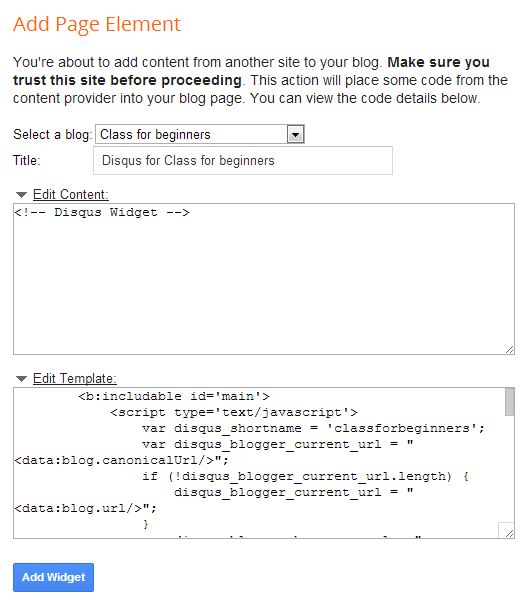
4. Install disqus comment to your blog. If you have more than one blog in your email, make sure to select the right blog which one you want to use Disqus comment form. Click Add Widget to add the disqus widget to your blog automatically.

5. Done. If you want to change the comment position you can do it from layout menu in your blogger admin page.

How to create a contact form for Blogger


Like the contact page on a website which is equipped with some form and then automatically sends the message to an email address. The same thing can be done on blogger, for example the contact page on blogger, you can see the contact page on my blog.

Such as my previous article create a forum on blogger, it's just that there are differences in step 3. Just follow the steps and change step 3 with this. Just sign up for free on the site then you will get a script that you will insert into your blog. Messages sent from the contact page, will be sent to the email address you used to register on Kontactr.

Just comments below if you have issues with it.

How to create a forum for blogger

Forum pages use in a websites to increase the interaction among the users or readers with the admin. Usually someone can make a question in the forum that can be answered or resolved by others. Generally the forum is only used on a website, but what if we want to create a forum on blogger with blogspot domain?

Yes we can make the forum page on blogspot, and for example, you can open forum page in my blog. Here we will use the services of an online forum form, to be put into our blog page. Let's just say we are going to use Nabble as a forum and put it into the pages of our blog.

Well here are the steps and a little explanation to create a forum in blogspot:

1. Create a new blank page and named it Forum. And don't forget to set "Don't Allow" Reader comments in page settings options.
How to create a forum for blogger


2. Click view and copy the page url and paste to notepad. Sometimes the address of the page that we created is not the same as the title, it's caused by two reason:
  • There is a page with the same name you've ever made before.
  • There is an error during the save process, which resulting in duplicate content, and this often happens on blogger during save and publish of a new post or page.

3. Go to this page, then fill a form in there to register and get a script which will be embedded into your blog.

4. Next, from your blogger dashboard navigate to Template >> Edit HTML.

5. In Edit HTML editor, find this line
 <div class='columns fauxcolumns'>
and then add the following code just right before the line above
<b:if cond='data:blog.url == "FORUM URL"'> CODE FROM NABBLE </b:if>
I am using standard template, custom template maybe different, just comment bellow if you have any issue by finding your right line to placing your forum code.

6. Replace the red part with the embed code that you get from nabble, replace the blue part with your forum page url, "make sure you are replace it with the right url"

7. Next, add the following code just before closing the head tag, or right before </head>
<b:if cond='data:blog.url == "FORUM URL"'> <style type='text/css'> .columns, .fauxcolumns { display:none !important; } </style> </b:if>

8. Save your template.

Once you have a forums page, you can make the adjustment to the look of your forum page provided by Nabble.
Like us on Facebook
Follow us on Twitter
Recommend us on Google Plus